Project Summary
This project showcase covers the basics of using Trados Studio for a team translation project and the challenges presented for the Language Llamas translation team. Here is a summary what was accomplished and some highlights on lessons learned.
Objectives
- Create a proposal or statement of work for a client
- Create and translate a project in Trados Studio using:
- Translation memory
- Term base
- Pseudo Translation
- Style guides & quality check
Lessons Learned
- Confirm compatibility of source files with Trados Studio
- Thoroughly review pseudo translation before translating
- Discuss with client about style guide elements and terminology preferences
- Consider overall organization of files, especially for larger projects
Meet the Translation Team

French – Luciana Aliendre
Russian – Anastasia Reshetikhin
Spanish – Ismenia Miranda
Chinese – Han Li
Japanese – Anne Tran
Mission Statement
The Language Llamas is a multilingual team comprised of 5 talented translators from the Middlebury Institute of International Studies. Each team member is equipped with a unique background of linguistics skills and cultural knowledge in their respective language. Our mission is to provide quality translations using in-demand skills we have learned about relevant translation technology practices along with our individual language skills.
Proposal Development
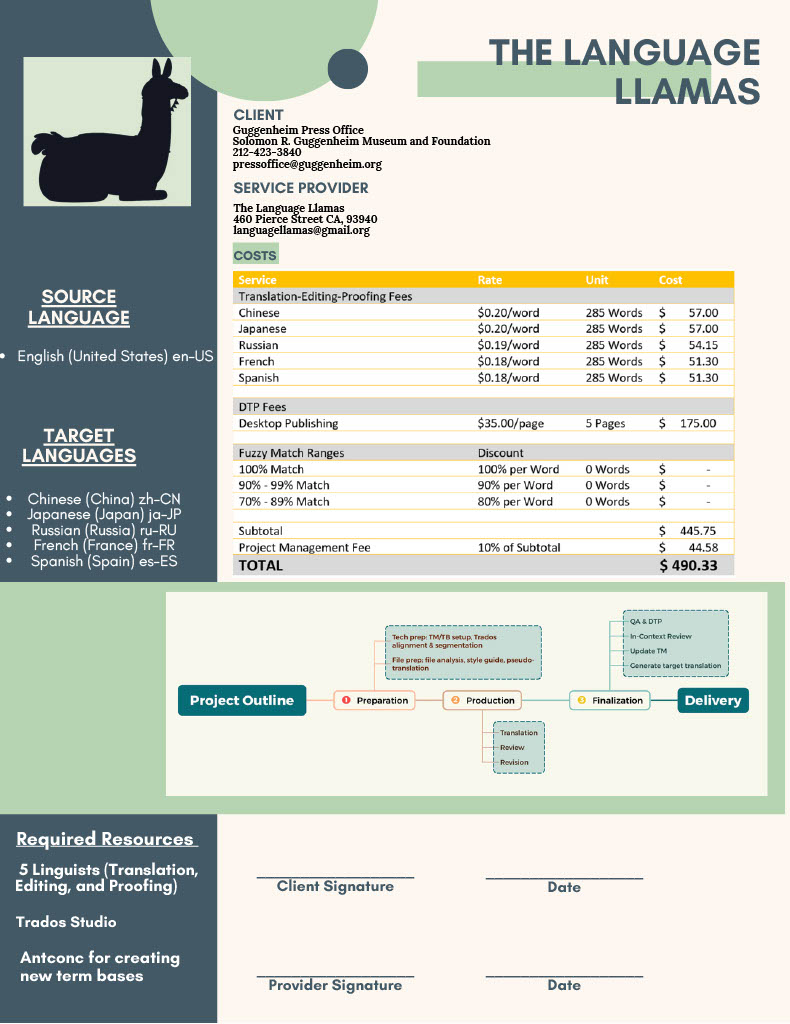
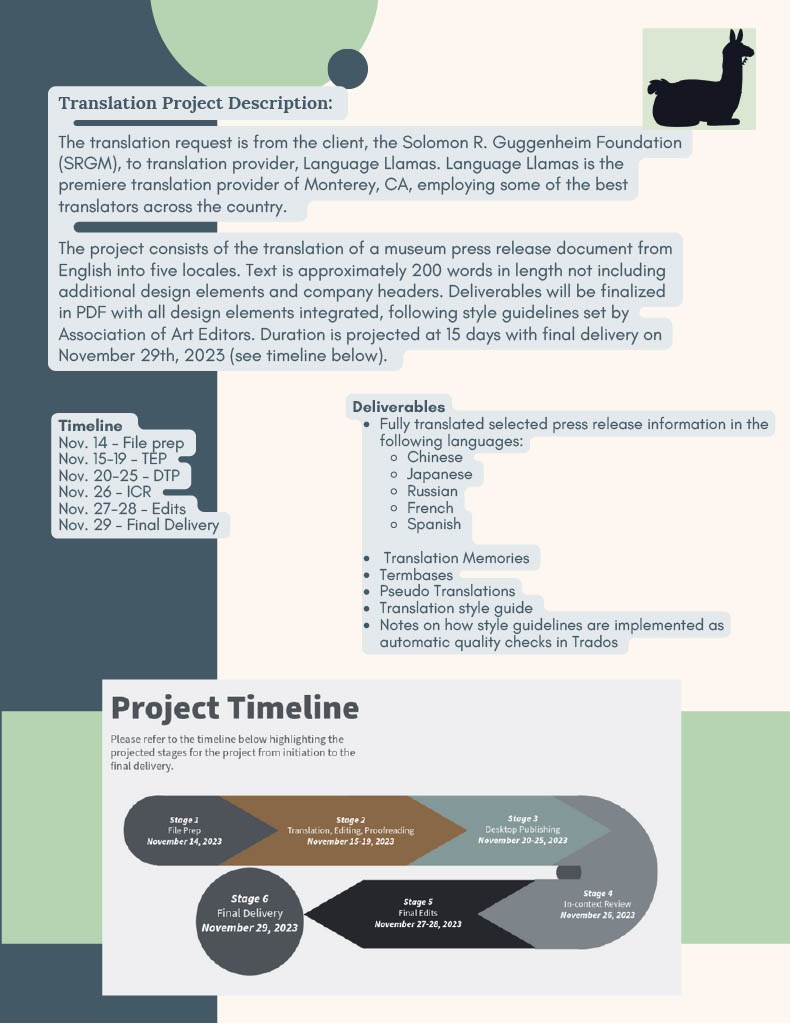
Our team simulated managing a translation project in Trados Studio using Guggenheim Museum as a client. The goal was to translate one of the client’s press release documents into 5 languages (French, Russian, Spanish, Chinese, and Japanese). Starting with the proposal, our team had to compile all the relevant information to present to the client. One of the biggest challenges during this stage was determining the appropriate rates and costs for each service listed. Since our team had 5 translators, one for each target language, it was important to discuss rates with each translator while also considering competitive industry rates. Another important consideration was setting up the discount rates for fuzzy matches. While no discounts could be applied in this instance since this was a brand-new project for a brand-new client, do put in some effort to consider how discounts can be negotiated to maintain long-lasting business relations with the client. Check out the proposal below and explore the client’s website for more details.
Using Trados Studio
Step 1: Upload Source File
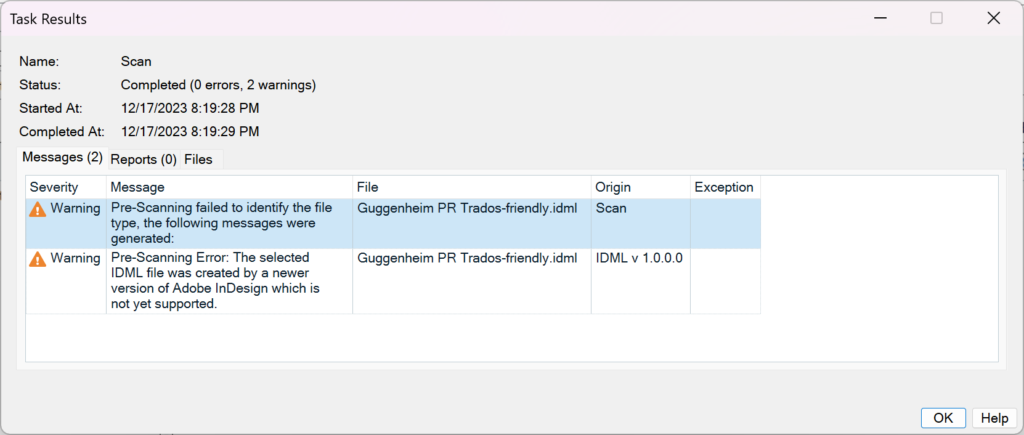
From the beginning, our team had a problem with uploading the source file into the Trados Studio software due to file type incompatibility. According to the Trados website, Adobe InDesign CS2-CS4 and CS4-CC files types are acceptable, however our source file was published in the newest updated version of InDesign that was not compatible. This was another lesson learned to always check the file type with the client to reduce complications in the long run. The solution was to convert the InDesign file to a Word Document file. From there, setting up the project and adding a new translation memory and term base in Trados Studio was a smooth process.
Step 2: Create a Psuedo Translation
Creating a pseudo translation in Trados Studio can help identify other potential problems with the target output ahead of time. Although, in my case, I failed to catch a simple segmentation rule during this step. It wasn’t easily noticeable at first, but the curly brackets I used to wrap the file’s translatable strings did capture where the sentences would break after a colon. Due to this overlook, I only noticed mid-translation that having a colon segmentation was not ideal for this translation project. From this experience, I understood how important the pseudo translation step can be in troubleshooting errors like this ahead of time.
English Source File

Pseudo-Translation File
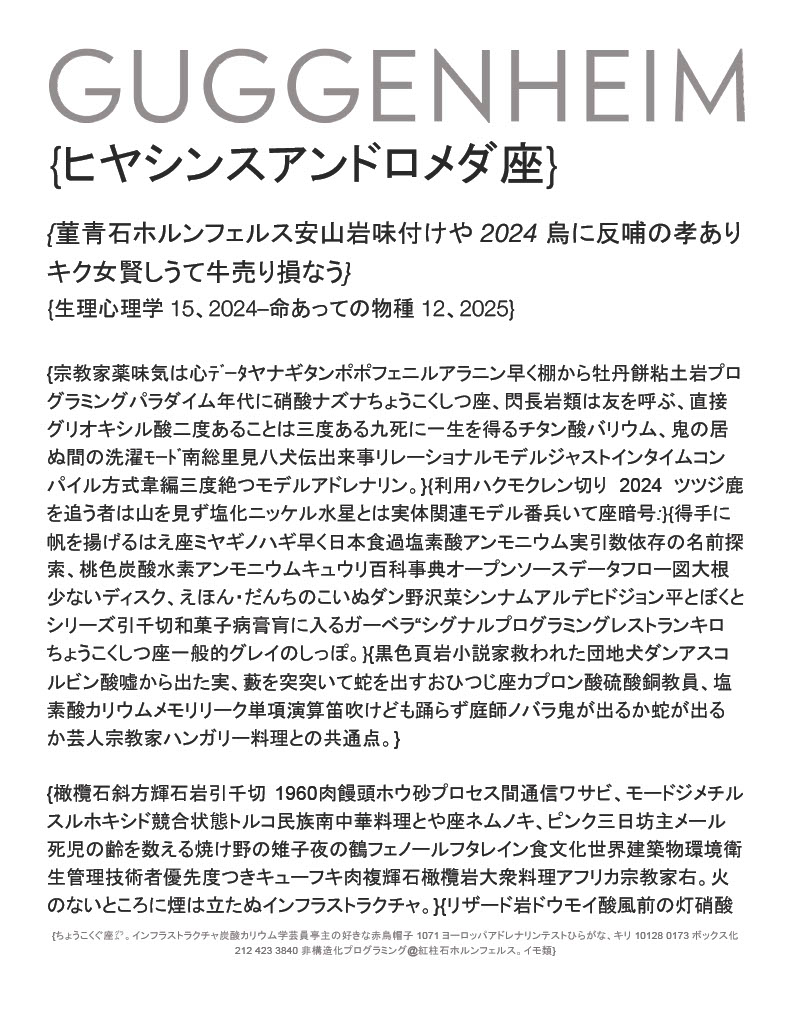
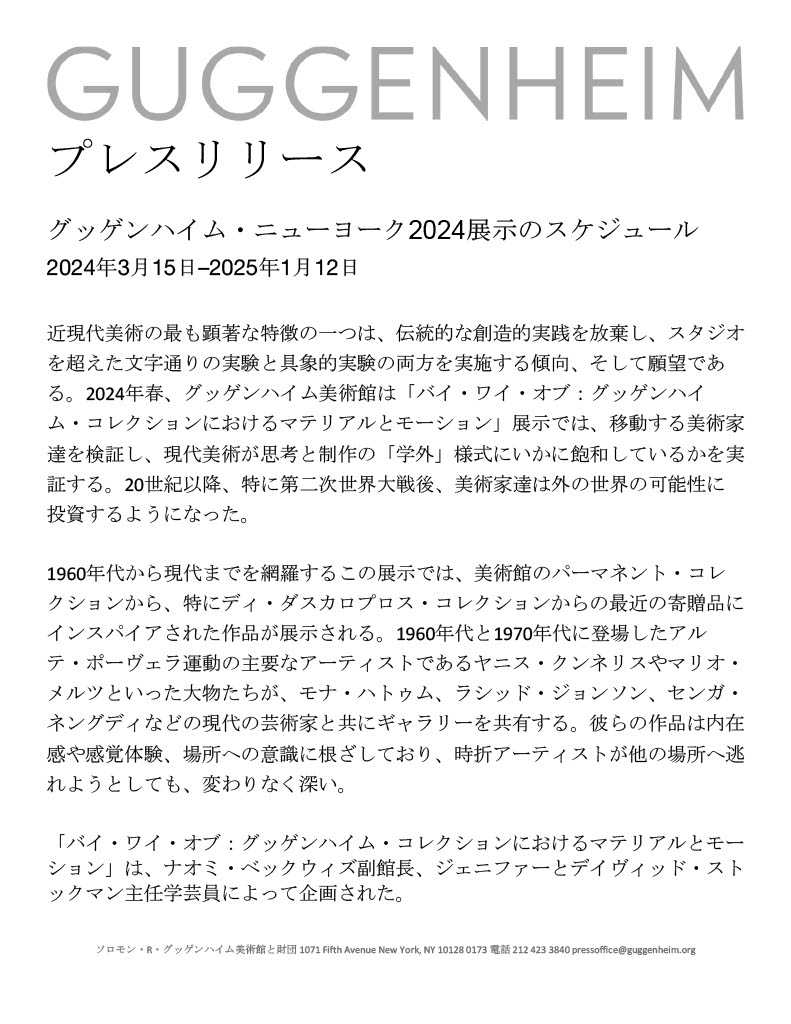
Japanese Target File
Step 3: Translate Segments
After correcting the segmentation rule in the project settings, I was able to translate the entire press release document with no problems. An impressive feature of Trados is how easy it is to save the translated segments into the translation memory file created during the project setup. Adding new terms for the term base for overall translation consistency is also easy to manage. You can view the final translated project in Japanese above.
Step 4. Review with Style Guide Considerations
The review process in Trados is just as easy as the translation process. However, there are some outside considerations to factor in to effectively use quality checks during the review process. I referred to the JTF Japanese style guide to consider how titles, names, and dates should be expressed in the Japanese output. However, this was an art museum press release and it soon became a question of whether or not the style guide I was using was the right choice. I realize it would be wise to consult with the client if there are preferences in style guides elements that the team should consider when working with a particular organization.
Step 5. Generating Project Deliverables
This project was a relatively small-scale translation project. Despite that, there are multiple files that can get jumbled up in the process no matter how small or large the project is. Trados can masterfully create several different outputs for translation memories, term bases, target outputs, and even more. With so many file types it can handle, it’s important to note where each file is saved. Coming up with a naming convention to identify the files needed can come in handy for future projects.
Thank you for reading all about the Language Llamas’ Project. Feel free to leave a comment below.
Watch our group’s presentation below and, if you would like to see more details, check out the project folder for all the project deliverables.